Independent guide
Screen Studio guide for Mac
A working overview of Screen Studio for macOS: what it is, what you can record, and how zoom, cursor, editing, and export fit together.
This page is an independent educational guide. Video Workflow Studio does not develop Screen Studio and does not provide official support. For installation and current product details, use the official Screen Studio website.
The value of the app, as described in the official documentation, is that it records the screen and then lets you present the action with animated zooms and cursor treatment. You do not have to animate those moments while you talk.
What is Screen Studio?
Screen Studio is a screen recorder and lightweight editor made for macOS. The developer describes it as a tool for product demos, courses, tutorials, and short social videos. Official materials recommend macOS 13.1 or later, with Apple silicon preferred for heavier work.
A distinctive point in the official documentation is how the cursor is handled. Screen Studio records the screen and precise mouse movement data, then composites the cursor in the finished video. That is why cursor size, style, smoothness, and visibility can be changed after you stop recording.
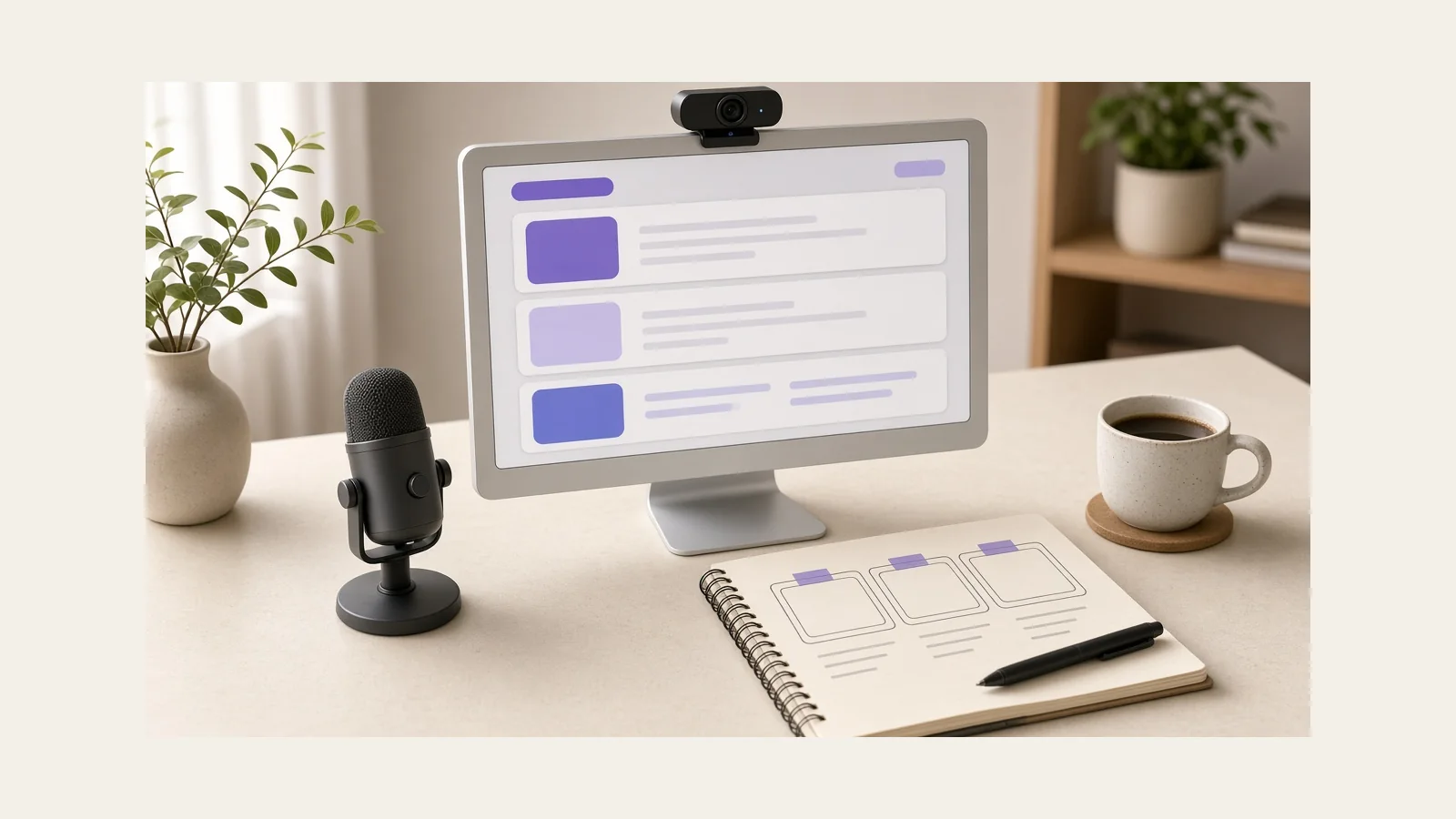
What can you create?
Typical uses documented by the developer include:
- Software demos that need to stay readable on a smaller playback window
- Course and tutorial lessons with voice, screen, and optional camera
- Short clips for documentation, changelogs, or social formats
- Recordings that later switch between wide, square, and vertical frames
You can record the entire display, a single window, or a selected area. Official guides also cover webcam, microphone, and system audio from all apps or from selected apps. iPhone and iPad capture over USB is documented as a separate recording path.
Screen recording workflow
Treat Screen Studio as a capture-then-shape tool. Prepare the desktop, choose the source, and record the task in one continuous pass when you can. The editor is where you trim, speed up slow stretches, place zooms, and set the frame.
Before a real take, grant the permissions macOS asks for: screen recording, microphone, and camera if you use them. Official setup pages walk through those prompts. A permission miss is a common reason a first recording has no audio or a black screen.
During recording, official materials note that takes are written to disk frequently so a crash is less likely to lose the whole clip. Still, keep a simple outline nearby so you are not inventing the script while the red light is on.
After you stop, open the project and do the mechanical work first: trim the start and end, cut long pauses, then decide where the viewer needs a closer look. Our recording workflow page maps that sequence for any recorder, not only Screen Studio.
Zoom and cursor presentation
Official documentation describes two zoom types. Auto zoom looks at click positions and frames those moments. Manual zoom lets you point at a specific region when there is no click, or when a click is not the thing you want to emphasize.
If you drop an auto zoom on a stretch with no clicks, the app will not have a target. Switch that zoom to manual and choose the area. That single rule prevents a lot of “why didn’t it zoom?” confusion.
Cursor controls documented by the developer include size, macOS or Touch styles, hiding the cursor entirely, hiding it while idle, looping the cursor back to its start for seamless loops, and options to reduce shake. Motion blur can be tuned for cursor movement and for zoom motion. Use those tools to make the pointer easy to follow, not to decorate every second.
Read the longer practice notes on automatic zoom and cursor effects.
Editing and exporting
The editor, as documented, supports trimming, cutting, speeding up segments, backgrounds, outer spacing, shadows, camera layout, captions, and keyboard shortcut overlays. Aspect ratio can change after the recording. Official materials say zooms, layouts, and captions can adjust when you move between wide, square, and vertical output.
Export is a separate decision. Official export pages describe MP4 and GIF, with resolution, frame rate, and quality controls. MP4 is the usual format for finished videos. GIF is documented as a better fit for short loops; long GIFs grow slowly and become large files.
The developer states MP4 export can go up to 4K at 60 fps. That does not mean every project should use those values. Match the destination, then review the file on the same kind of screen your audience will use. See video export settings.
Practical recording tips
- Clean the desktop and hide icons if they are not part of the lesson.
- Resize the recorded window to a consistent size before you start.
- Speak in shorter sentences. Editing cannot fix a wandering explanation.
- Leave a beat of silence before and after the action so trims are easy.
- Do not chase the cursor with your eyes as if you were already zoomed in.
- Record system audio only when the app sound is part of the story.
- Watch a first export on a phone-sized window. If type fails there, add a zoom.
Frequently asked questions
Is this the official Screen Studio help center?
No. This is an independent guide on Video Workflow Studio. Official documentation lives on the developer’s site.
Do I need to zoom while I record?
No. Official materials describe adding and editing zooms after the take. Record the work, then decide what deserves a closer frame.
Can I change the cursor later?
Yes, according to the official cursor guide. Size, style, visibility, and several motion options are editor controls, not live recording locks.
Where should I get the app?
Only from the developer’s official website or other channels the developer lists. This site does not host an installer.
More questions are collected on the FAQ page. Feature-by-feature notes are on Screen Studio features.