Recording guides
Screen recording on Mac
A Mac-focused checklist for cleaner takes: prepare the desktop, choose the capture area, set microphone and camera, and store the files so you can find them later.
Prepare the desktop
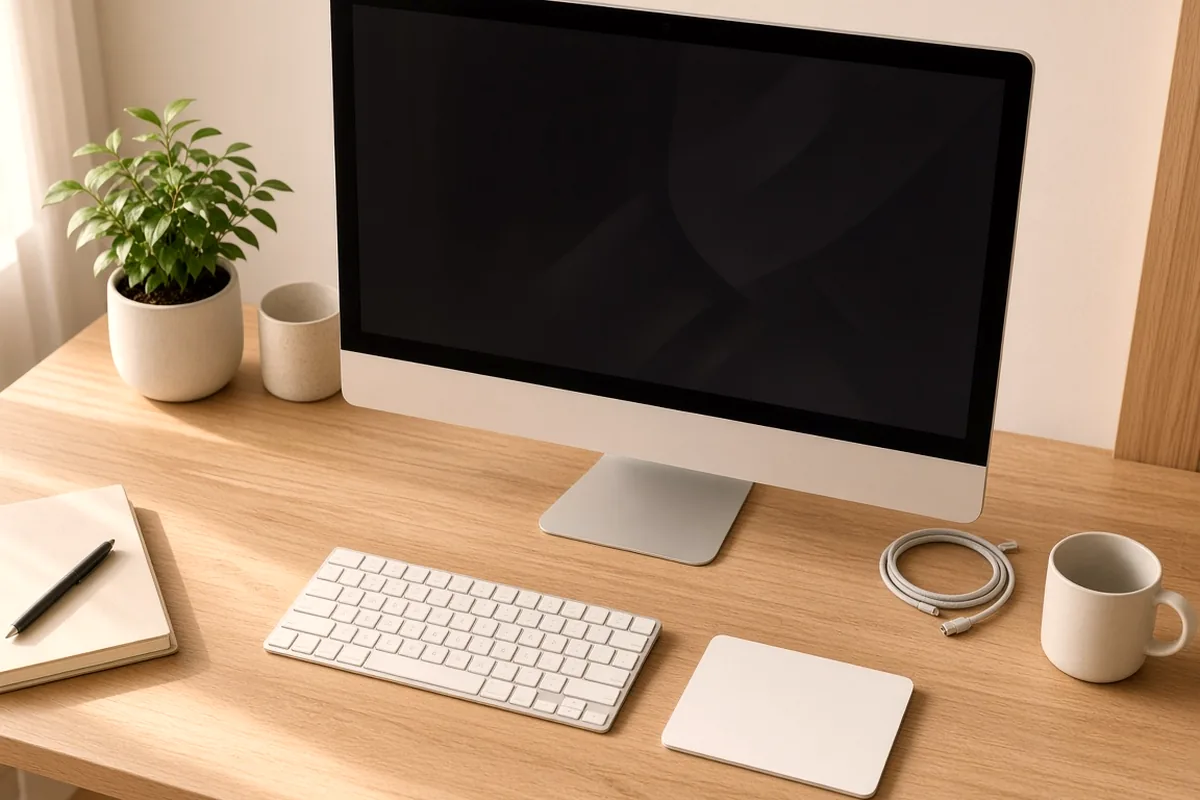
A screen recording is a picture of your working environment. Dock badges, messy desktop icons, and a personal wallpaper become part of the video. Move files into a folder, hide the dock if it steals the bottom of the frame, and use a plain wallpaper when the product UI should be the only color story.
Close calendar, chat, and mail windows. Notifications are the most common accidental cameo in Mac recordings. Use Focus or Do Not Disturb for the length of the session, not only for the minute you think you will need.
Increase UI size in the app you will demonstrate if the playback window will be small. It is easier to record readable type than to rescue tiny labels later. If you still expect to zoom, leave a little margin around the control you will discuss so the zoom has room to land.
Choose the recording area
macOS can capture the full screen, a window, or a selected portion. Built-in tools live in the Screenshot toolbar, opened with Shift-Command-5. QuickTime Player can also record the screen. Dedicated apps, including Screen Studio, offer the same three source types and then add editing after the take.
- Entire display — useful for multi-window workflows. You will crop or zoom later.
- Single window — cleaner for one app. Resize the window first so the frame stays stable.
- Selected area — good for a fixed panel. Mark the same region if you record a series.
If the lesson jumps between two apps, a full-display recording is usually less fragile than stopping to retarget a window. If the lesson stays inside one product, a window recording reduces desktop noise.
Set up the microphone
Open System Settings → Sound and select the input you intend to use. Watch the input level while you speak at the volume you will use on camera. If the meter barely moves, move closer or raise input gain. If it peaks constantly, lower the gain.
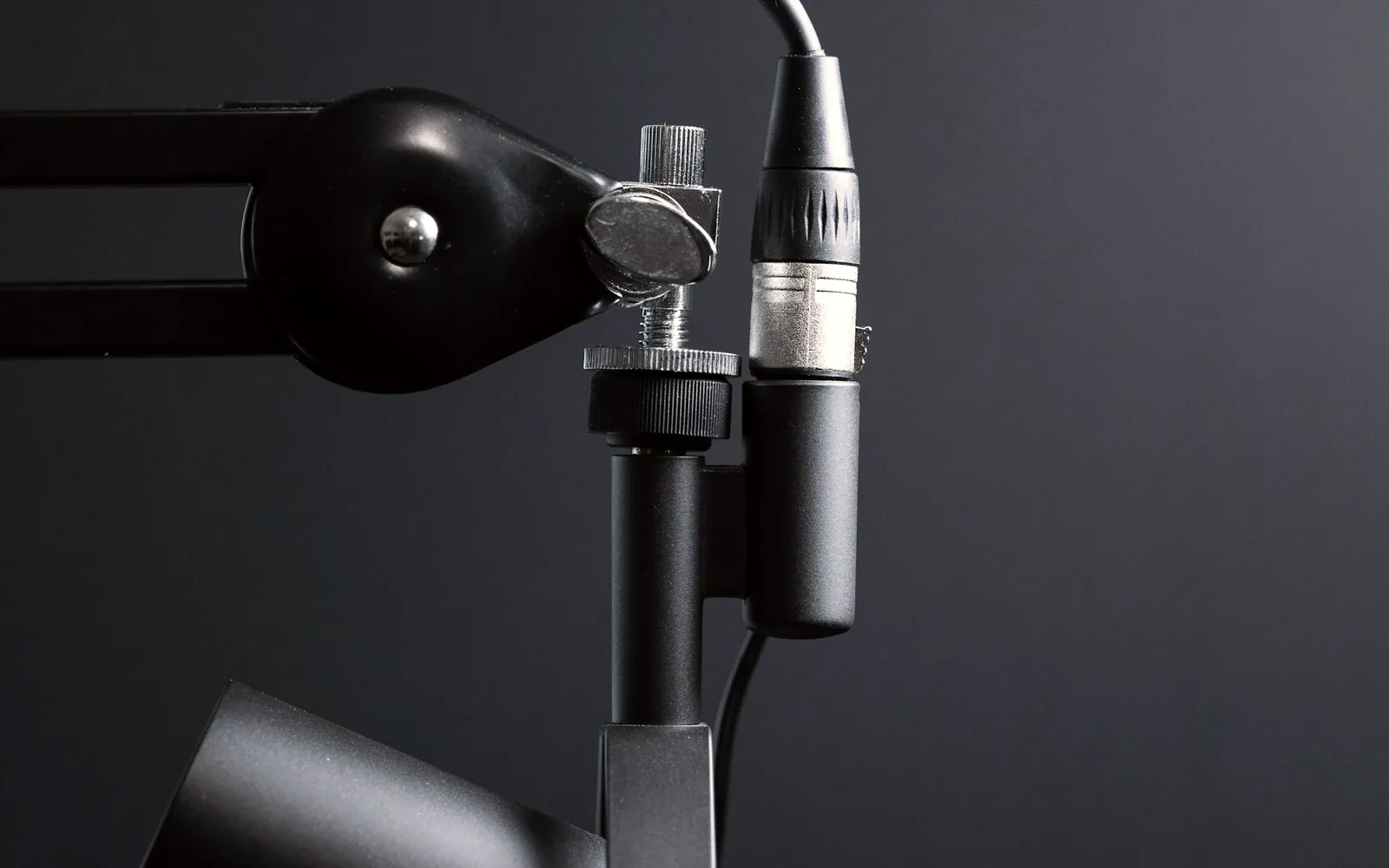
A headset mic is fine for drafts. A simple USB microphone placed off axis, about a forearm from your mouth, usually sounds more stable for published demos. Mute system sounds you do not want, or record system audio on a separate decision — not by accident.
Grant microphone permission to the recording app before the session. macOS will not always surface that prompt at a convenient moment.
Prepare the webcam
If you appear on camera, sit with your eyes near the upper third of the frame and put the lens at eye height. Soft light in front of you beats a bright window behind you. Check that the camera is not mirroring text on a shirt or showing a cluttered background you did not mean to include.
In Screen Studio, official webcam notes say the on-screen preview is not a permanent mask over the recording. You can still keep the preview out of the way so you are not acting around it. After the take, place the camera where it will not cover the control you are explaining.
If the video is about the interface, not about you, skip the camera. A voice track and a clean screen are enough for most software lessons.
Quality recommendations
Record at the display resolution you actually use, unless the file will be huge and the destination is clearly 1080p. Upscaling a soft capture is harder than downscaling a sharp one. Keep the display scaling consistent across a series so UI chrome does not jump size between episodes.
Use a wired or otherwise stable connection if you demonstrate a web app. A mid-recording Wi-Fi stall becomes a pacing problem. Close extra browser tabs that steal CPU. On older Intel Macs, full-display 60 fps recording plus camera can hitch; a window capture at 30 fps is often the more honest choice.
Organize the files
Create a folder for the project before you record: 01-raw,
02-edit, and 03-export is enough. Name takes
with the date and a short slug, such as 2026-10-26-billing-demo-take02.
Do not call everything Screen Recording and hope you
remember the difference.
Keep the raw take until the exported file has been checked on another device. Then archive or delete according to your own storage practice. If you use an app that saves projects separately from exported MP4 files, back up the project when you still expect to change zooms or captions.
When the capture habit is stable, move to the full recording workflow or to the Screen Studio guide if that is the app you are learning.