Recording guides

A complete recording workflow

Use the same six-step sequence each time. The order matters more than the brand of recorder.

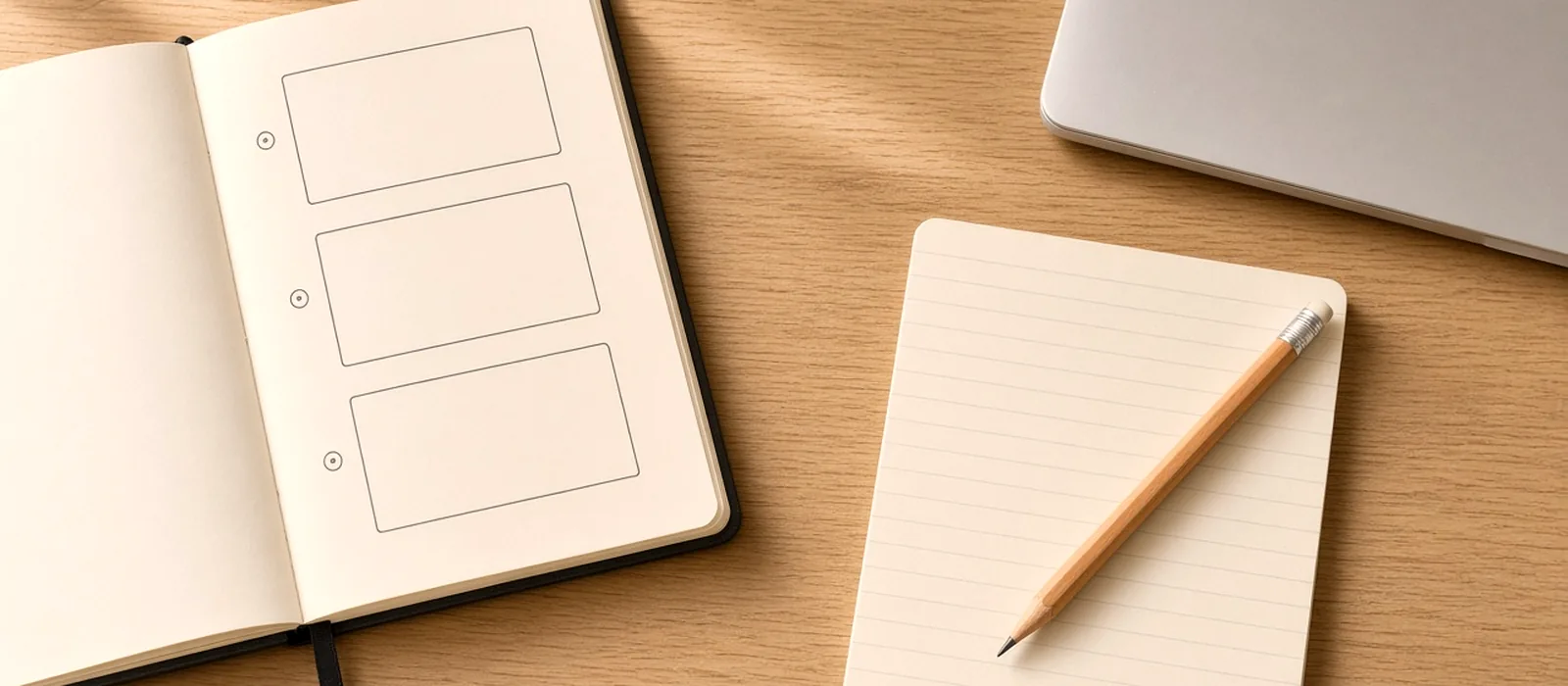
Planning a screen recording with a storyboard, shot list, and laptop on a desk

Planning

Write the task in one sentence. List the screens you must show and the sentence you will say on each. Decide who the video is for and where it will be watched. That choice later sets aspect ratio and how tight the UI must be.

Prepare sample data. A demo that uses real customer names or a half-filled form will stall. Create a dummy account, a dummy file, and a dummy error if the lesson includes recovery.

Preparation

Clean the desktop, enable Focus, and open only the windows you need. Select the microphone and, if you use one, the camera. Record a short test. Playback is the only honest meter.

Choose the capture source: full display, window, or area. Resize the window to a size you can repeat. Put a glass of water off camera and a written outline next to the keyboard. Details are on the Mac recording guide.

Recording

Start, wait a beat, then begin talking. Move the cursor with purpose. Click once. If you miss, pause and click again rather than circling the control. Do not perform zooms live unless the tool you use has no post-zoom.

If you lose the thread, stop, leave a spoken marker such as “retake from the invoice screen,” and continue. It is easier to cut a marker than to salvage a two-minute ramble. Keep takes short enough that a mistake does not throw away the whole lesson.

Editing

Trim heads and tails, remove waits, then place visual focus. Add zooms where a first-time viewer would lose the control. Balance the voice. Leave transitions plain.

If you are in Screen Studio, this is the stage for auto or manual zooms, cursor size, and any caption or shortcut overlay. The practice notes live in editing basics and zoom and cursor effects.

Export

Pick a format and size that match the destination. MP4 is the common finished file. GIF is for short loops. Do not reach for 4K 60 fps unless you have a reason that survives a file-size check.

Name the export with the same slug you used for the raw take, plus the destination, such as billing-demo-1080p30.mp4. See export settings.

Review

Watch the file from the first frame to the last on a second device. Confirm there is no private data, no dead audio, and no zoom that lands on the wrong panel. If you would not send it to a customer, fix the cut or re-record the weak minute.

When the file is acceptable, store the project if you expect changes, and delete or archive raw takes according to your own policy. Then write down one note for next time: a permission you forgot, a window size that worked, a sentence that dragged.